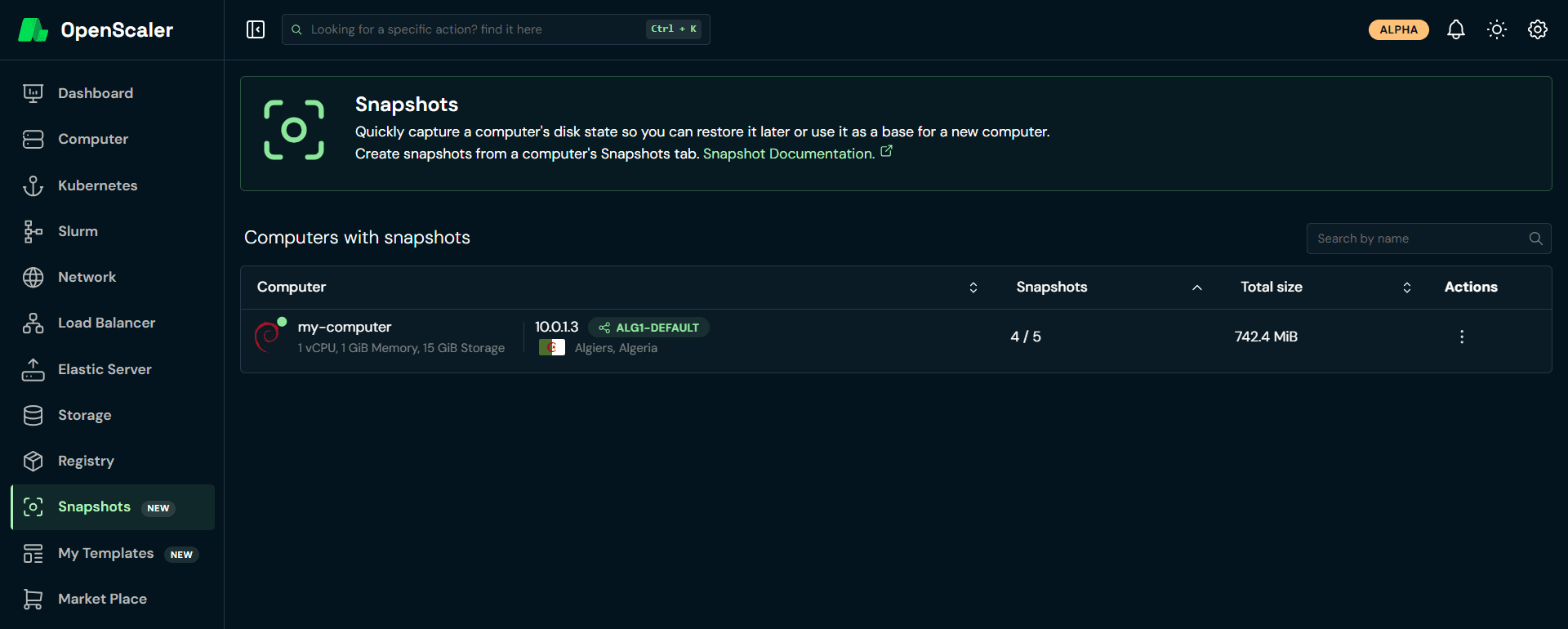
Snapshots
Snapshots are local rollback points of a Computer's live disk. Use them when you want to try a change and undo it quickly. They are not a durable off-site copy, for that, use Backups.
Snapshots vs Backups
Snapshot: on-host rollback point for the Computer you are on. Best for short-lived testing; delete them when you are done.
Backup: durable copy you can restore later. Prefer backups for long-term protection.
Concepts
Snapshot tree
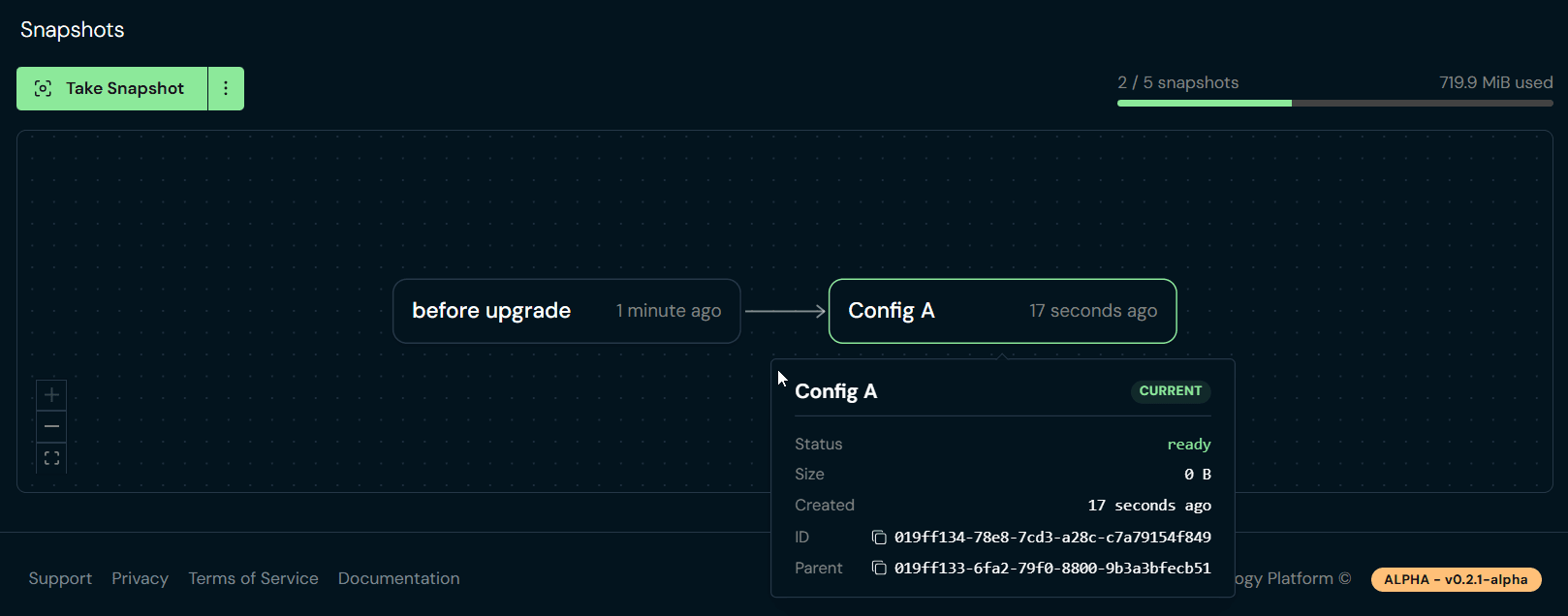
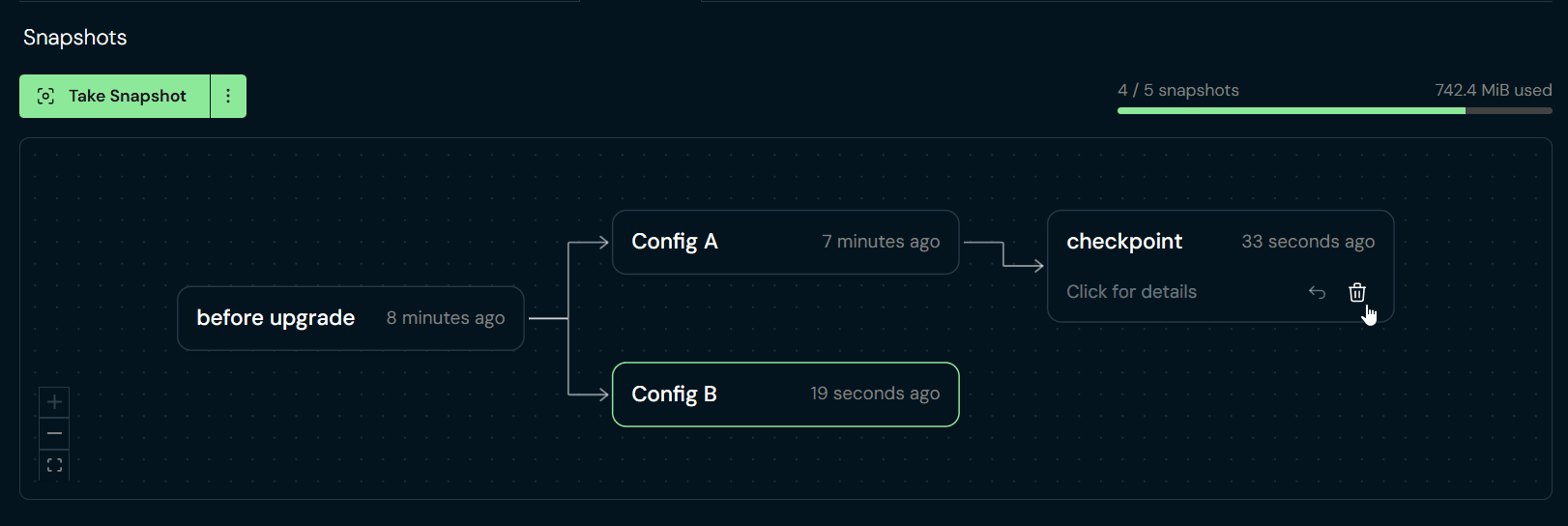
Each new snapshot is taken from the Computer's current live disk. Over time this forms a tree (parent → child branches), shown as a left-to-right graph on the Snapshots tab:
- Older snapshots sit toward the left; newer ones toward the right.
- The snapshot marked Current is the one the live disk is based on.
- Reverting to a snapshot restores the disk to that point. Changes made after it are discarded.
- Reverting the Current snapshot discards changes since that snapshot.
Limits and requirements
- Default cap is 5 snapshots per Computer (shown as
N / 5in the UI). Delete one to free a slot. - The Computer must be running and ready to take a snapshot.
- Snapshots are unavailable while the Computer is busy (for example during a backup or another snapshot operation).
Where to manage them
| Place | What it is for |
|---|---|
| Computer → Snapshots tab | Full tree, take / revert / delete for that Computer |
| Sidebar → Snapshots | Project overview of Computers that have snapshots; open a Computer to manage its tree |
Take a snapshot
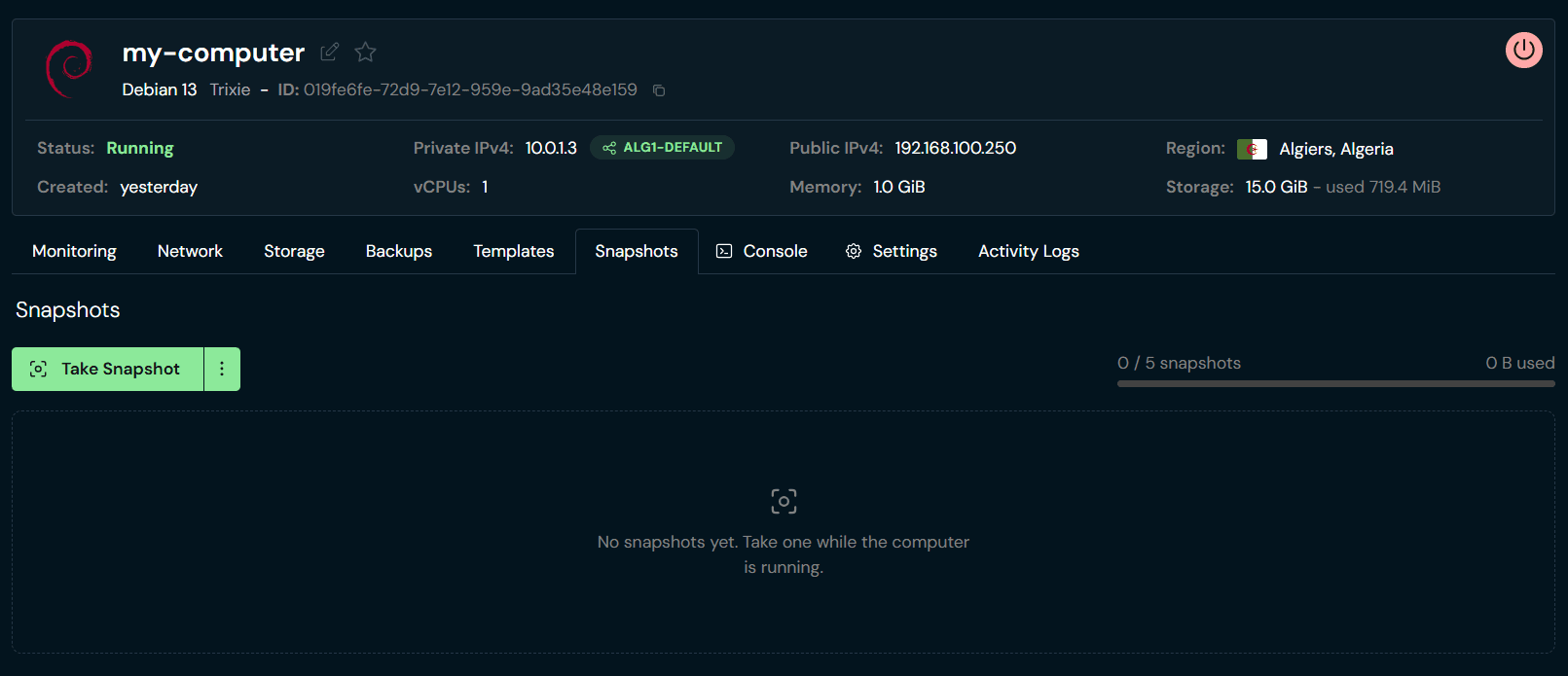
Click Take Snapshot
Click Take Snapshot. Name the snapshot (or use the name generator), then confirm.
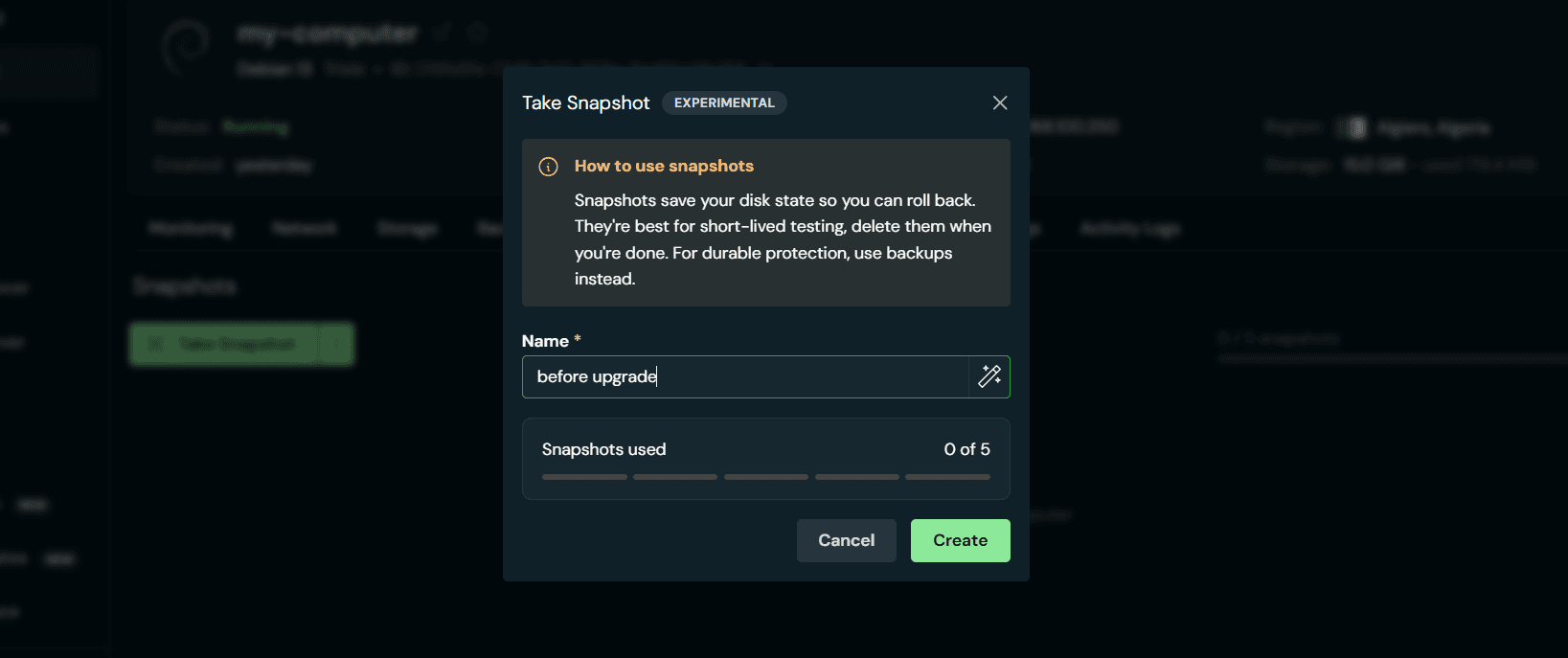
Tip
Name snapshots after the reason you took them (for example before-upgrade or pre-migrate) so the tree stays readable.
Wait for completion
The Computer status becomes snapshotting while the snapshot is created. When it returns to ready, the new node appears on the tree.
Revert to a snapshot
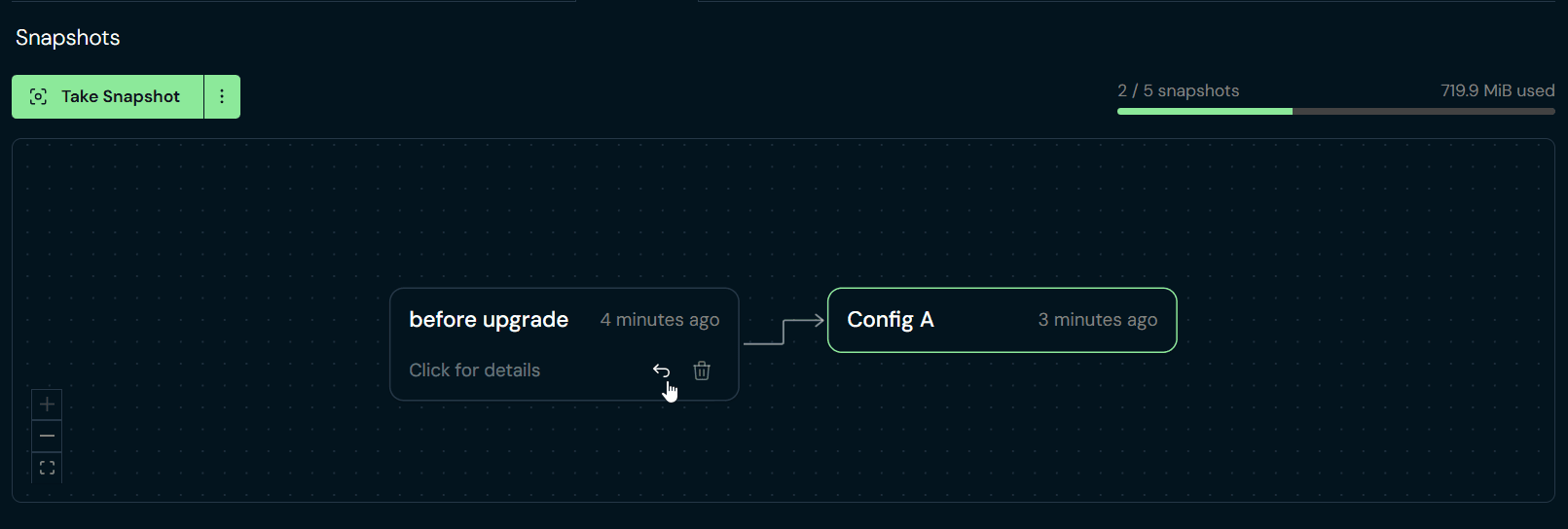
Reverting restores the Computer's disk to the selected snapshot. Any changes made after that snapshot are lost. If the Computer is running, it shuts down before the revert.
Choose a snapshot on the tree
On the Snapshots tab, find the node you want. Use the revert icon (curved arrow) on that node, or open the node details and revert from there.
Confirm the revert
Note that post-snapshot changes will be lost, and that a running Computer will shut down first. If you don't want to lose changes, create a new snapshot first, so your changes are recoverable later if needed.
Delete a snapshot
Deleting removes that snapshot from the tree. Sibling branches are not affected. This cannot be undone.
Delete all snapshots
Bulk Delete all snapshots (from the ⋮ menu next to Take Snapshot) is coming soon. Until then, delete snapshots one at a time.
Project Snapshots page
From the sidebar, Snapshots lists Computers in your project that have snapshots (count, size used, and so on). Open a Computer from that list to work on its tree on the Snapshots tab.