
Manage Elastic Server
After creation, open an Elastic Server from the list to monitor it, adjust scaling, manage nodes, and control power.
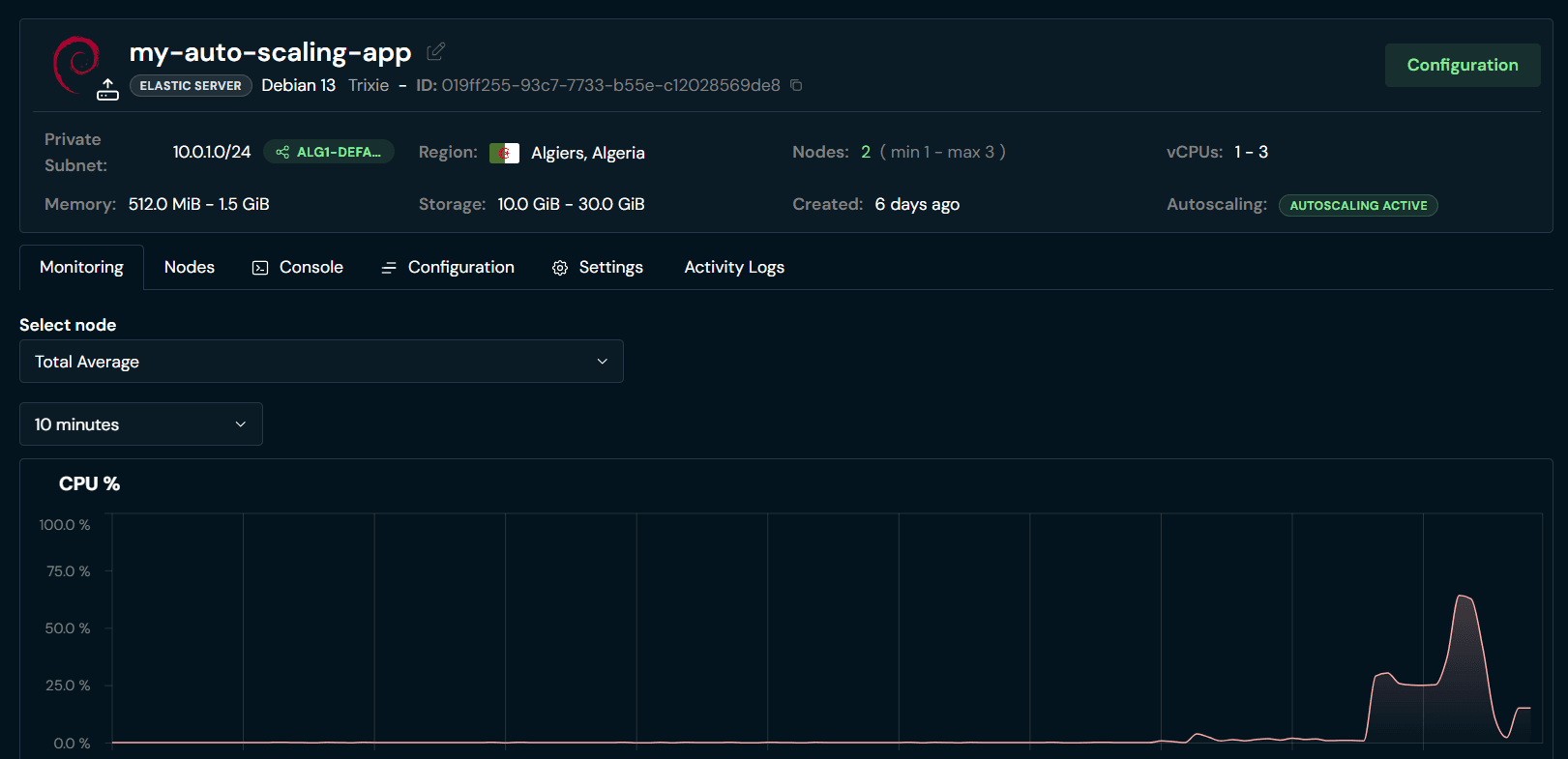
Nodes
The Nodes tab lists every VM in the pool (name, image, public/private IP, created time). Click a row to open that node as a Computer (useful for console, networking, or snapshots on a single node).
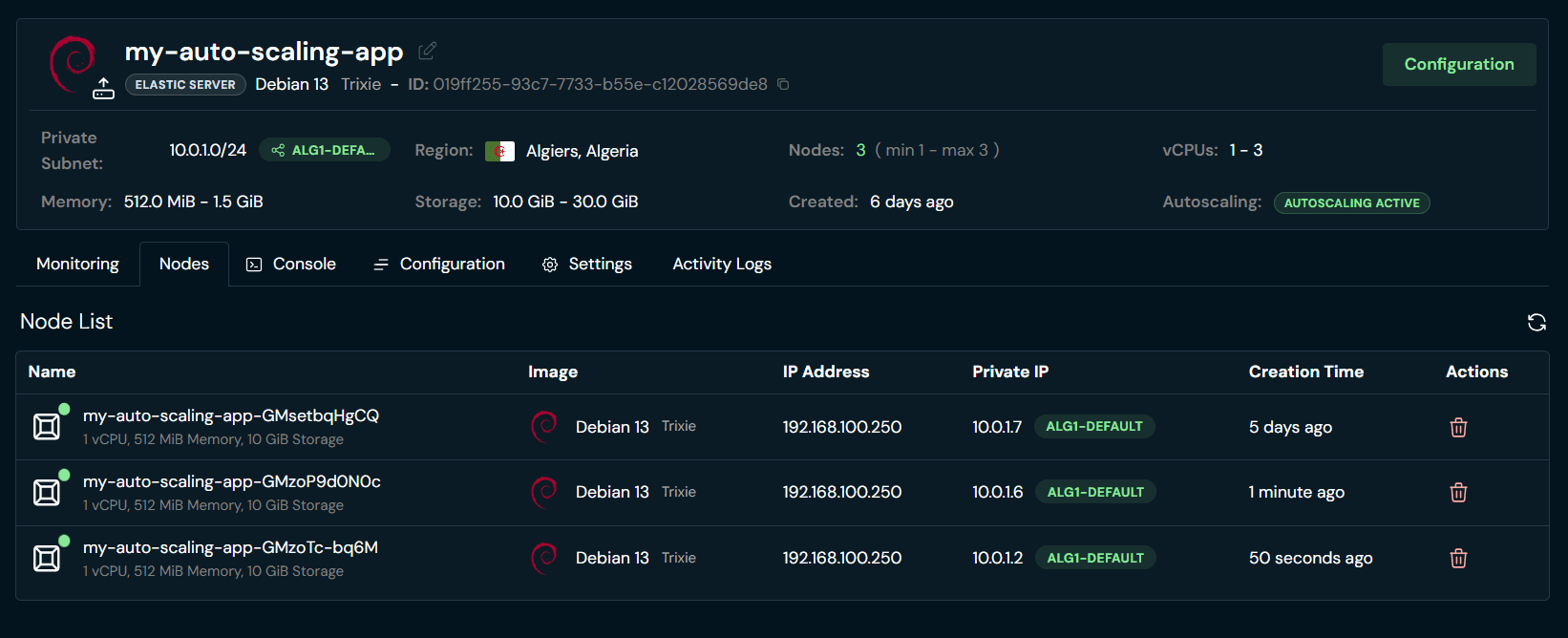
Note
Nodes are Computers owned by the Elastic Server. Prefer pool-level power and delete actions on the Elastic Server unless you intentionally manage one node.
Edit scale configuration
Open the Elastic Server's configuration view, then click anywhere on the form (or use Edit) to change min/max nodes, metrics, cooldown, and related limits. Click Apply Changes when done.
Autoscaling still uses the same rules as create: metrics outside the min/max band trigger scale up or down; cooldown prevents rapid flapping.
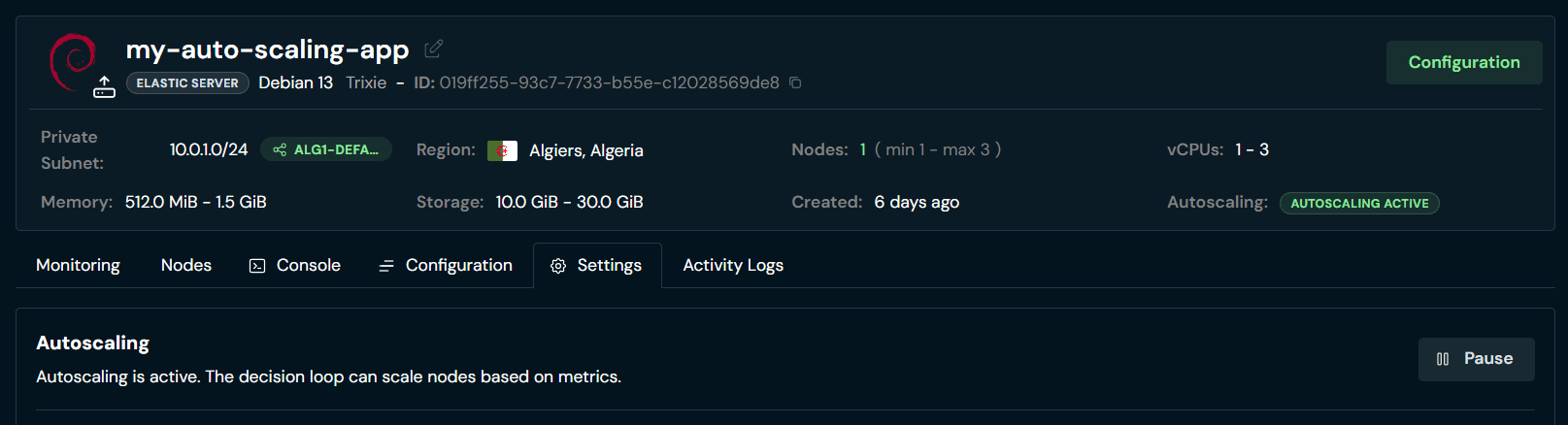
Pause or resume autoscaling
On the Actions tab, the Autoscaling row toggles whether the decision loop may add or remove nodes.
- Pause (pause icon): node count stays put until you resume (existing nodes keep running)
- Resume (play icon): metrics can scale the pool again
Power control
Also on Actions, Power Control applies to all nodes:
| Action | Effect |
|---|---|
| Shut Down All | Graceful shutdown of every node; also pauses autoscaling when Autoscale is enabled |
| Start All | Starts every node; resumes autoscaling when Autoscale is enabled |
| Reboot / force stop / reset | Extra options from the power menu, still apply across nodes |
Monitoring and console
- Monitoring: pool-level metrics over time
- Console: console access to a selected node (pick a node first when prompted)
Delete an Elastic Server
On the Actions tab, use delete and confirm. This removes the Elastic Server and its nodes, irreversible.