
Quick Start
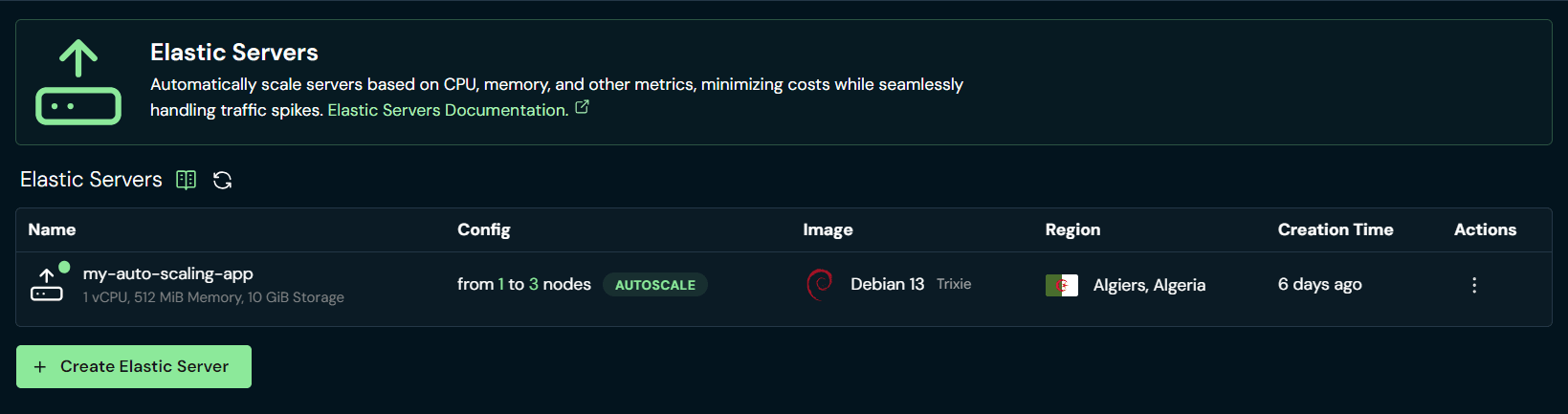
OpenScaler Elastic Servers (or auto scaling servers) are pools of virtual machines that scale up and down automatically based on metrics such as CPU and memory.
Creating an Elastic Server
Open the create page
In the platform sidebar, open Elastic Server, then click Create Elastic Server.
You can create with Manual (assign a load balancer later) or Wizard (create a load balancer and wire it in the same flow). This guide follows the Manual path. For Wizard, see Wizard.
Choose a Region and VPC
Select a datacenter region, then a VPC Network (or rely on the region's default VPC).
Configure scaling
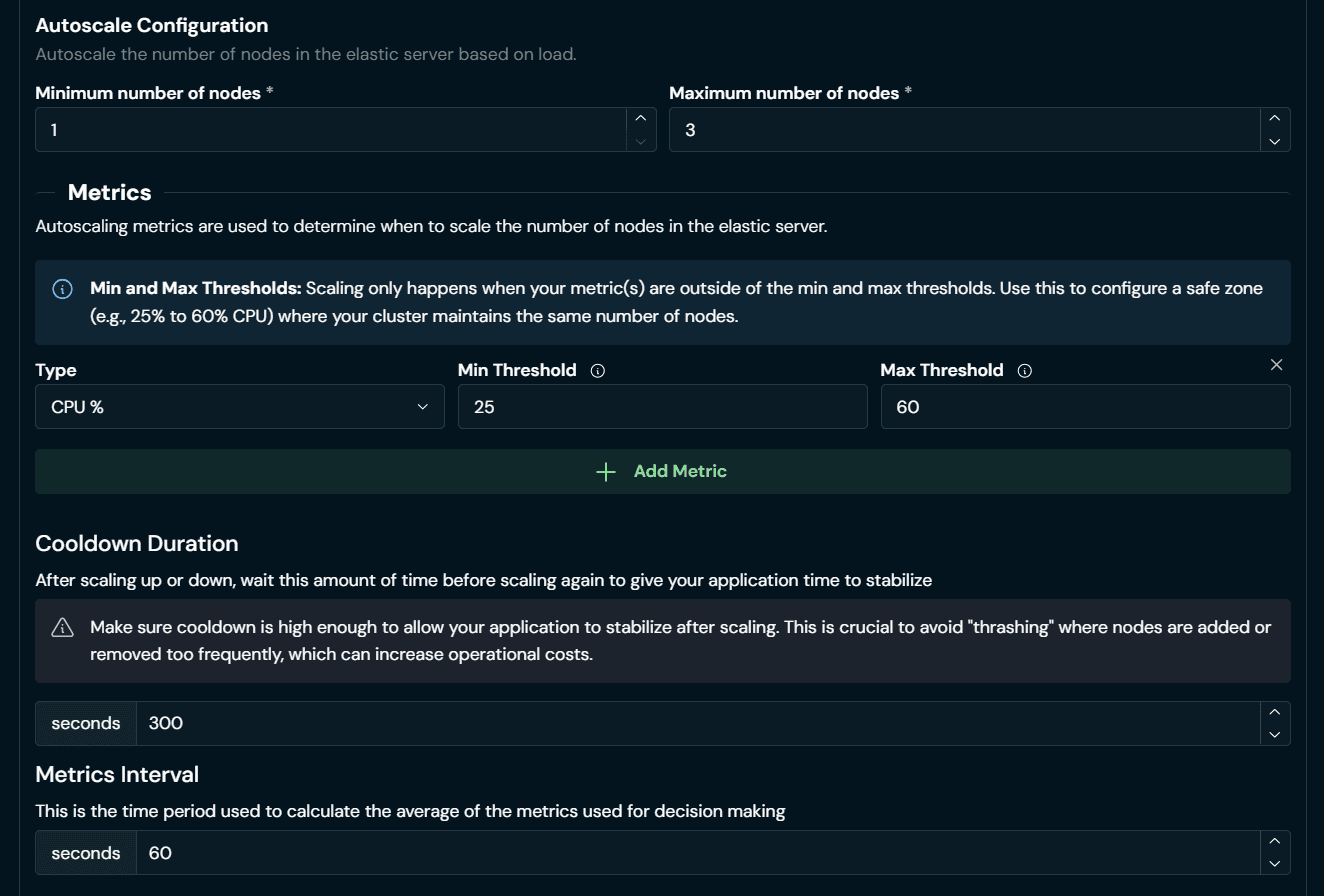
Under Scale Configuration, choose Autoscale (fixed node count is not available in the UI yet).
Set:
- Minimum and maximum number of nodes
- At least one metric (CPU %, Memory %, Total Disk I/O, or Total Network I/O) with min/max thresholds
- Cooldown and optional metrics interval / per-step scale limits
Scaling only happens when metrics leave the safe zone between min and max thresholds. Example: CPU between 25% and 60% keeps the current node count.
Tip
Cooldown must be greater than the metrics interval so the pool does not thrash (rapid scale up/down).
Choose image, size, name, and auth
Same building blocks as a Computer:
- Image: OS for every node (Marketplace images are hidden on this form)
- Elastic Server Node(s) Type: CPU / RAM / disk size for each node
- Name and Tags
- Authentication: password and/or SSH keys for nodes (see Configure Authentication)
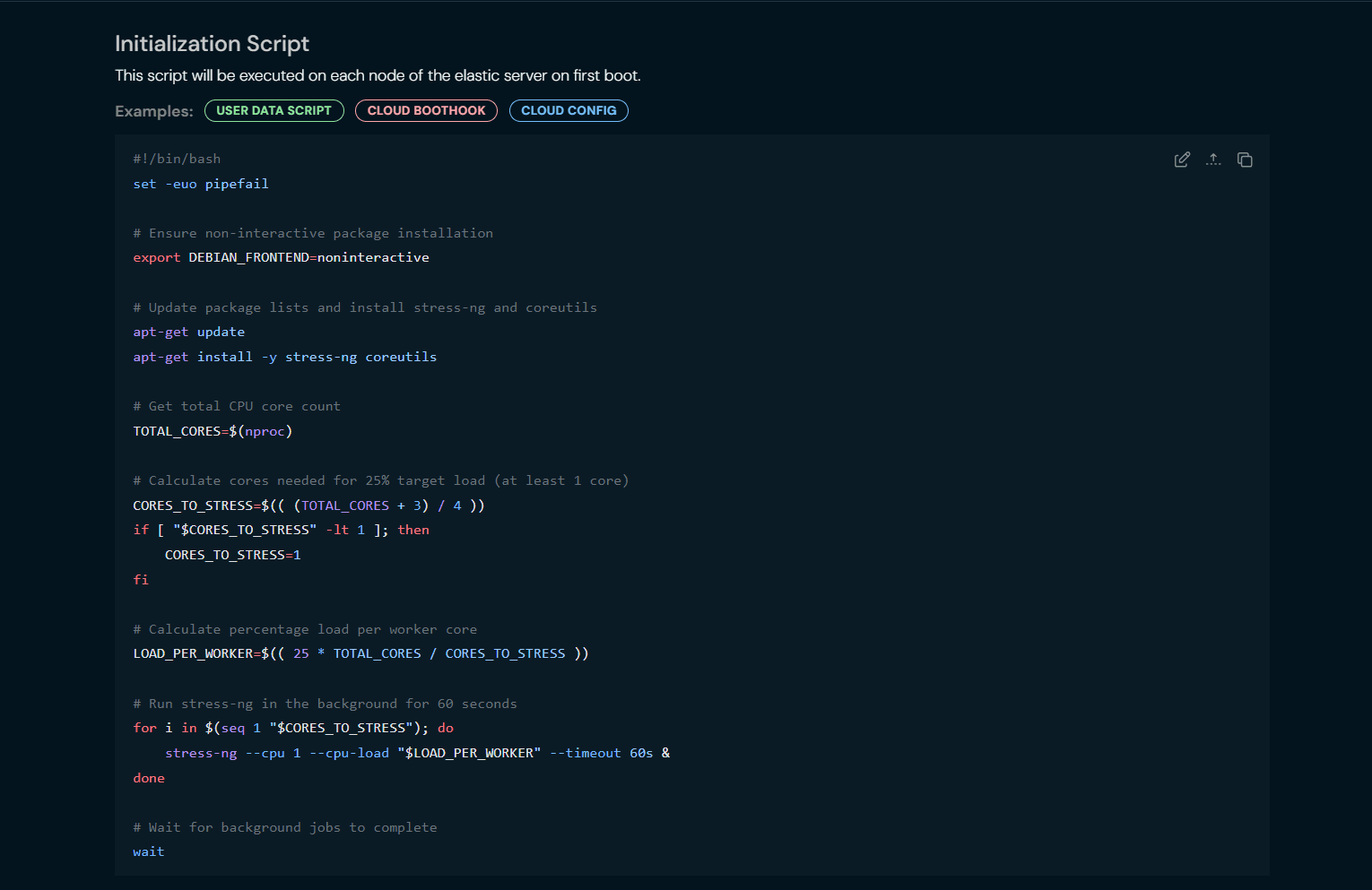
Add an initialization script
Initialization Script runs on each node on first boot (cloud-init). It is required, use it to install your app, join a cluster, or pull config.
Review pricing and create
Check the Summary (hourly billing per node; monthly figures are estimates), then click Create Elastic Server. Progress events show while nodes come up.